LTSN workshops on the preparation of web-based lecture support materials

"The use of sound to enhance web-based lecture support materials"

Led by Dr Paul Kenyon, University of Plymouth

Hands-on activity 2

In this section of the workshop you will:

Action Screen display
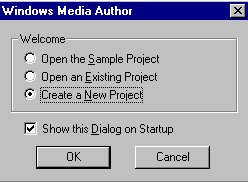
  • Launch Windows Media Author (Start, Programs, Windows Media, Windows Media Author).
  • Select the 'Create a New Project' option


Action Screen display
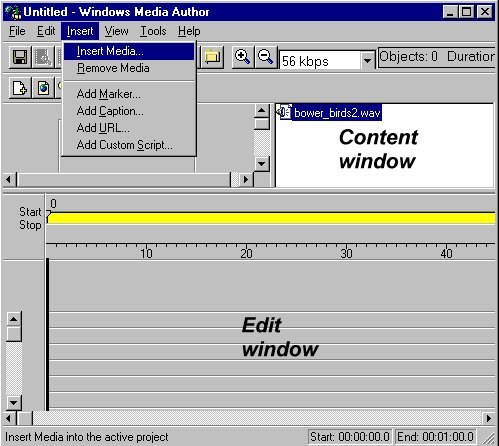
  • Use Windows Media Author's Insert, Insert Media...drop-down menu to add bower_birds2.wav to the content window.
Action Screen display
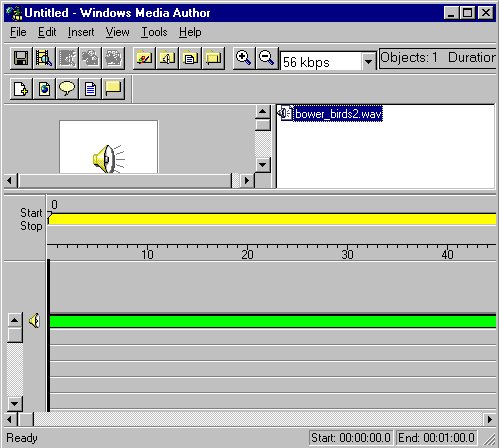
  • Drag bower_birds2.wav from the Content window to the Edit window by clicking on filename, keep left mouse button depressed, and drag mouse so that the Drop Time =00.00 (i.e. audio will start playing at time 00:00).
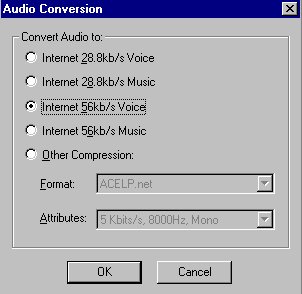
  • Windows Media Author will prompt you to convert the file: Select the 'Convert Audio to Internet 56Kb/s Voice' option.


Action Screen display


Use Windows Media Author's drop-down menus to save the project as bower_birds.aep

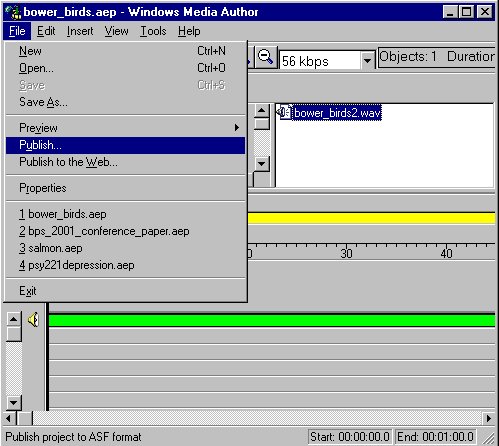
You must save a project before it can be published as a streaming audio ASF file.

This is indicated by the 'Publish..' option being made available on the File drop-down menu

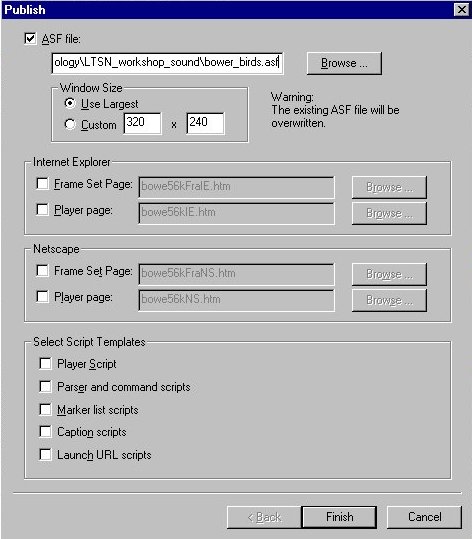
Action: Select File, Publish .. from the drop-down menus. Make sure that the ASF file box is checked, and the filename is set to bower_birds.asf. You can uncheck all the other options on this panel.
Screen display Screen display

Action Screen display
  • Use File, Preview, Converted Media in Windows Media Author to hear the ASF version of your commentary played by Windows Media Player. This will show you how good the streamed audio file will sound to your end users.
  • Take a moment to compare the sizes of the WAV and ASF versions of your commentary. I think you will agree that the sound quality is remarkably good considering the small size of the ASF version compared to the original WAV file.
Action Screen display


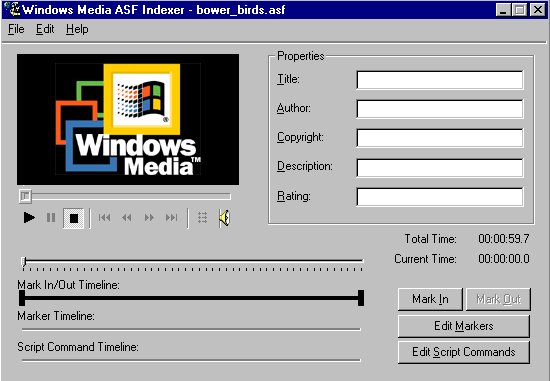
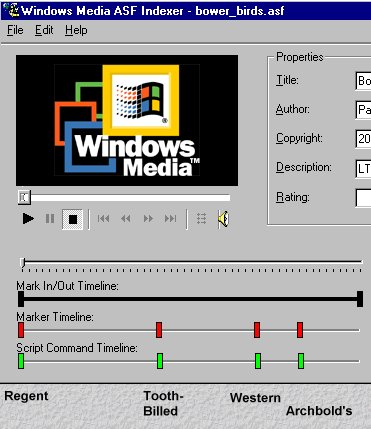
  • Launch Windows Media ASF Indexer (Start, Programs, Windows Media, Windows Media ASF Indexer) and open bower_birds.asf

Tip:The next step is quirky but do it nevertheless. Use File, Save As .. to save the file as bower_birds.asf

I think there may be a 'bug' in ASF indexer that this step fixes!

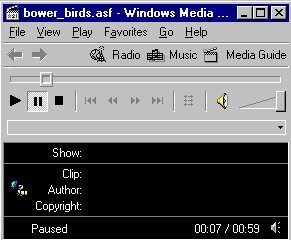
Get used to using the control panel to Start, Pause and Stop the audio

Action Screen display


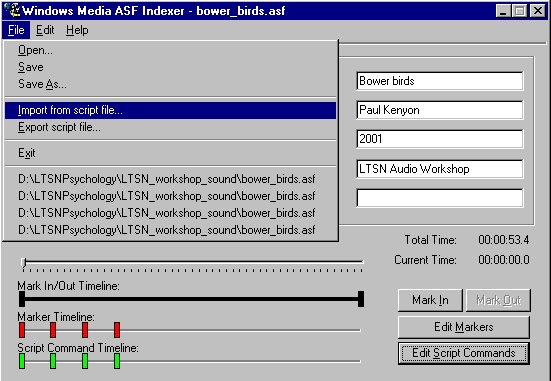
  • Use the File, Import from script file... drop-down menu option to import the Markers and Script Commands from the file bower_birds.txt
  • This will load a series of markers into the Marker (red) and Script Command (green) timelines
Action Screen display


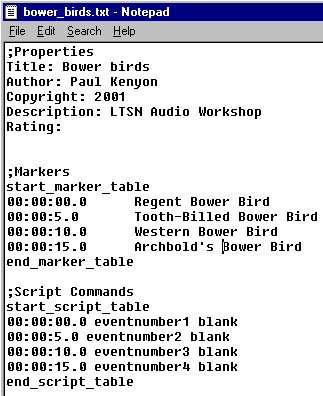
  • Open bower_birds.txt in the Microsoft Notepad application (Start, Programs, Accessories, Notepad)
Action Screen display
  • Move the Markers and Script Command indicators to the appropriate time within the audio file bower_birds.asf.
  • Use the Play control to listen to the audio, and hit the pause icon when the commentary reaches the point you want to mark.

I have indicated the approximate position where the commentary deals with each bower bird in this screen shot

  • Use the File, Export script file on the Windows Media ASF Indexer drop-down menu to save the script as bower_birds2.txt
Tip:Examine your new script file in Notepad. Check that the Markers and Script Commands are in the right order. It is easy to get markers 'crossed' by pulling a marker over the top of another marker.

Use File, Save to save the modified ASF file as bower_birds.asf


Copyright Dr Paul Kenyon, University of Plymouth (2001)

Last modified Friday, May 25, 2001